FFmpeg: The Most Powerful Command-Line Tool, But Too Steep a Learning Curve
If you’ve ever tried to process video—converting formats, compressing files, extracting audio, or burning subtitles—you’ve definitely heard of FFmpeg. This open-source command-line tool is practically the “Swiss Army knife” of video processing. Nearly every mainstream video player, streaming platform, and editing software relies on it under the hood.
But FFmpeg has one fatal flaw: it only accepts command-line operations.
ffmpeg -i input.mp4 -c:v libx265 -crf 28 -c:a aac -b:a 128k output.mp4This command might be nothing special for programmers, but for average users, what is -crf 28? What’s the difference between libx265 and libx264? And what should you put for -b:a 128k? Behind every parameter lies an entire video encoding knowledge system.
This is exactly where FFmpegFreeUI (abbreviated as 3FUI) comes in.
What is FFmpegFreeUI?
FFmpegFreeUI is an open-source graphical frontend for FFmpeg, maintained by Chinese developer Lake1059. It has already gained 8,100+ stars on GitHub, making it one of the most popular tools in its category.
Its core positioning is: a professional interactive shell for FFmpeg. It’s not a one-click automatic tool for complete beginners, but rather targets “users who understand basic parameters but don’t want to type command lines.” As the developer puts it—“Beginners face a learning curve, but the ceiling is infinitely high.”
Basic Information
| Item | Details |
|---|---|
| License | MIT License |
| Language | Visual Basic .NET |
| System Requirements | Windows 10 1609+ (x64/arm64) |
| Runtime | .NET 10 |
| UI Framework | LakeUI (custom DirectX rendering engine) |
| GitHub Stars | 8,100+ |
| Pricing | All productivity features free, personalization features paid |
| Language Support | Simplified Chinese only |
Installation and First Impressions
Installation Steps
- Install .NET 10 Runtime: 3FUI is built on .NET 10, which needs to be installed on your system first. 3FUI’s built-in updater can automatically download and install it.
- Download FFmpegFreeUI: Download the latest version from GitHub Releases and extract it to any directory.
- Place FFmpeg: Put the FFmpeg executable in the same directory as 3FUI, or add it to your system PATH. 3FUI doesn’t include any codecs itself—it relies entirely on the system’s FFmpeg.
Interface Design
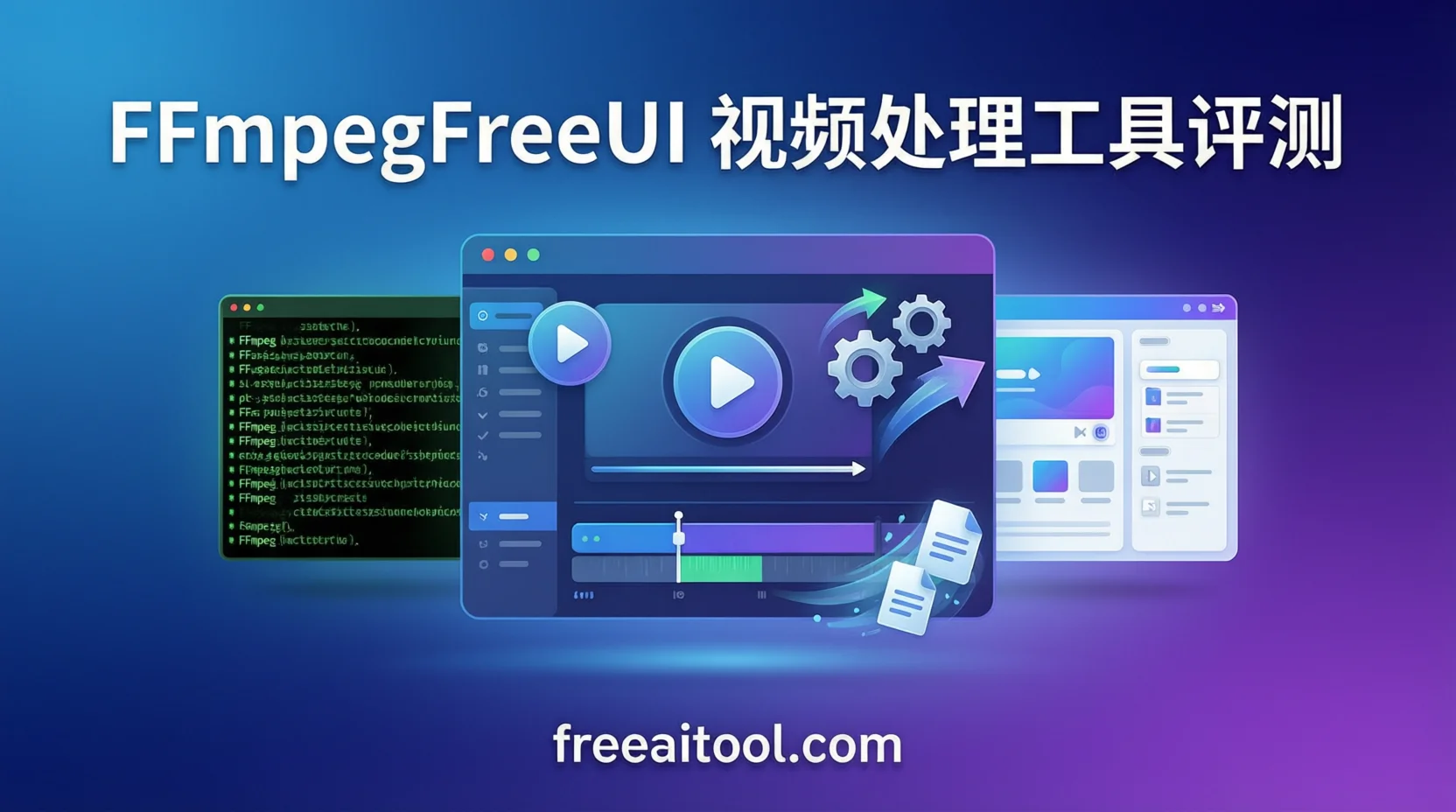
3FUI’s interface is one of its standout features. Based on the developer’s custom LakeUI rendering engine (DirectX-powered), the entire interface supports:
- Frosted Glass Effects: Available to all users
- High DPI Scaling: Crystal clear on 4K screens with manual fine-tuning
- Dark Theme: Default dark style with a tech feel
- Direct Parameters: Most places directly display FFmpeg parameter names for easy learning and debugging
The main interface is divided into several core areas: input file management, encoding parameter panel, task queue, and performance monitoring. The hierarchy is clear—unlike some tools that cram everything onto one page.
Core Features in Practice
1. Video Format Conversion
This is the most basic and commonly used feature. 3FUI supports container formats including MP4, MKV, MOV, AVI, WebM, FLV, and virtually all mainstream formats.
Steps:
- Drag and drop or add video files to the input area
- Select the target format (e.g., MP4) from the “Container Format” dropdown
- Choose the encoding format (e.g., H.264, H.265, AV1)
- Click start task
Hands-on Experience: Converting a 1.2GB MOV file to MP4 (H.264 encoding) was smooth, with a progress bar showing real-time remaining time and estimated file size. 3FUI’s estimation algorithm is quite accurate, with error within 5%.
2. Video Compression
Video compression is 3FUI’s strength. It offers multiple compression strategies:
- CRF Mode: Constant quality factor—lower values mean higher quality (recommended 18-28)
- Bitrate Mode: Specify target bitrate for precise file size control
- Resolution Scaling: Reduce resolution to shrink file size (e.g., 4K → 1080p)
- Hardware Acceleration: Supports NVIDIA NVENC, Intel QSV, and AMD AMF
Hands-on: A 2GB 4K video compressed with H.265 CRF 28 came down to about 450MB with nearly lossless quality. 3FUI’s interface directly shows a CRF slider with corresponding quality descriptions—much more intuitive than typing -crf 28.
3. Audio Extraction
Extracting audio from video is another high-frequency need. 3FUI supports extraction to MP3, AAC, FLAC, WAV, OGG, and other formats.
Steps:
- Add video file
- Select “Audio Only” in audio settings
- Choose target audio format and bitrate
- Start task
Extracting audio from a 90-minute video to 320kbps MP3 took about 15 seconds, resulting in a 128MB file with audio quality identical to the original video.
4. Video Editing (Trimming and Merging)
Combined with the official auxiliary tool 3fuiVideoHelper, 3FUI enables visual video trimming:
- Visual Timeline: Drag to select start and end points
- Frame-accurate: Supports frame-by-frame adjustment of trim range
- Lossless Cutting: No re-encoding needed when aligned to keyframes
Merging multiple video files is equally simple—add multiple files to the task queue and select “Merge Mode.”
5. Subtitle Burning
3FUI provides extensive options for subtitle burning:
- Hard Subtitles: Burned directly into the video (ASS/SRT/SSA formats)
- Soft Subtitles: Encapsulated as independent subtitle streams, switchable during playback
- Font Selection: Custom subtitle font, size, color, and outline
- Position Adjustment: Manual adjustment of subtitle display position
6. Watermark Addition
Supports both image and text watermarks:
- Image Watermark: Supports PNG (with alpha channel), JPG, etc., with adjustable position, size, and transparency
- Text Watermark: Custom text content, font, color, and position
Comparison with HandBrake, ShanaEncoder, and Format Factory
| Feature | FFmpegFreeUI | HandBrake | ShanaEncoder | Format Factory |
|---|---|---|---|---|
| Open Source & Free | ✅ MIT | ✅ GPL | ✅ Free | ❌ Has ads |
| Hardware Acceleration | ✅ NVENC/QSV/AMF | ✅ NVENC/QSV | ✅ NVENC/QSV | ⚠️ Partial |
| Batch Processing | ✅ Unlimited | ✅ Supported | ✅ Supported | ✅ Supported |
| Custom Parameters | ✅ Full freedom | ⚠️ Limited | ⚠️ Limited | ❌ Not supported |
| Subtitle Burning | ✅ Rich options | ✅ Basic | ✅ Supported | ⚠️ Basic |
| Plugin System | ✅ Supported | ❌ No | ❌ No | ❌ No |
| AI Agent | ✅ 3FUI Agent | ❌ | ❌ | ❌ |
| Remote Control | ✅ UDP protocol | ❌ | ❌ | ❌ |
| Chinese Interface | ✅ Native Chinese | ⚠️ English mainly | ⚠️ Korean/English | ✅ Chinese |
| Cross-platform | ❌ Windows only | ✅ All platforms | ❌ Windows only | ❌ Windows only |
Summary:
- HandBrake suits cross-platform users and beginners—rich presets but limited customization
- ShanaEncoder is an excellent Korean-developed tool—simple and efficient but not as deep as 3FUI
- Format Factory is a legacy tool with many ads and weak customization—gradually being replaced by open-source alternatives
- FFmpegFreeUI is the most comprehensive and highly customizable choice for advanced users
Beginner Tips
If you have no understanding of video encoding parameters, jumping straight into 3FUI might be confusing. The developer recommends beginners learn these basic concepts first:
- Container Format vs Encoding Format: MP4 is a container format; H.264/H.265 are encoding formats. The same MP4 file can contain different encodings.
- Bitrate and Quality Relationship: Higher bitrate means larger files and better quality. But different encoding formats have different efficiencies—H.265 saves about 40% space compared to H.264 at the same quality.
- Hardware Acceleration Trade-offs: NVENC/QSV/AMF are faster but slightly lower quality at the same bitrate compared to software encoding (x264/x265). Suitable for speed-priority scenarios.
- CRF Value Meaning: CRF (Constant Rate Factor) controls the quality-size balance. Recommended values: x264 18-23, x265 20-28. Lower values mean better quality but larger files.
The developer also recommends several learning resources, including Geekwan’s video parameter tutorials, Yingshi Jufeng’s encoding explanations, and Zhimo’s beginner guide on Zhihu. These will help you build a basic video encoding knowledge system before diving into 3FUI.
Advanced Usage
Batch Processing
3FUI’s task queue has no quantity limits—you can add dozens of files for batch conversion at once. Supports:
- Unified parameter batch conversion
- Different presets for each file
- Auto shutdown/sleep after batch completion
Custom Parameters
For advanced users, 3FUI allows direct input of original FFmpeg parameters in any parameter field. This means you can use FFmpeg’s full capabilities without GUI limitations.
3FUI Agent AI
This is a major highlight. The built-in AI agent can connect to any OpenAI SDK-compatible endpoint for:
- Natural language parameter control (“Help me compress this video to under 500MB”)
- Task management and error diagnosis
- Web search and file system operations
- Local processing with no data upload
Remote Control and Plugin Development
3FUI supports sending tasks remotely via UDP protocol, allowing deployment as a dedicated encoding machine in a LAN. It also provides .NET plugin development interfaces supporting C# and VB.NET extensions.
Limitations and Considerations
Limitations
- Windows Only: macOS and Linux users cannot use it—consider cross-platform alternatives like HandBrake
- Requires .NET 10: Some older systems may not support installation
- Simplified Chinese Only: No other language support—barrier for overseas users
- Learning Curve: While more friendly than command-line, still requires basic video encoding knowledge
- No Built-in FFmpeg: Users must download and configure FFmpeg themselves
Considerations
- When encountering errors, provide complete error messages and command-line parameters—don’t just describe symptoms
- 3FUI doesn’t include codecs—ensure your FFmpeg version is recent enough
- Hardware acceleration requires GPU driver support—confirm your GPU’s encoding/decoding capabilities first
- Glass background and other personalization features require SP supporter privileges
Final Verdict
FFmpegFreeUI is currently the most powerful FFmpeg graphical frontend on Windows. It’s not a “one-click solution” for beginners, but rather a truly professional platform-level product that respects user expertise.
Suitable For:
- Content creators who frequently batch process videos
- Video encoding enthusiasts who need precise parameter control
- Advanced users wanting to learn FFmpeg parameters without starting from scratch
- Teams needing to set up LAN encoding workstations
Not Suitable For:
- Complete beginners who know nothing about video parameters (watch tutorials first)
- macOS/Linux users
- Users who only occasionally need to convert a format (HandBrake is more appropriate)
Rating: ⭐⭐⭐⭐⭐ (4.5/5)
- Feature Completeness: 5/5
- Interface Design: 5/5
- Ease of Use: 4/5
- Documentation & Community: 4/5
- Cross-platform Support: 2/5
If you’re looking for a powerful, completely free, and open-source FFmpeg graphical tool, FFmpegFreeUI is definitely worth trying. Combined with its beginner tutorial and Bilibili video, even beginners can get started quickly.
Frequently Asked Questions (FAQ)
1. What’s the difference between FFmpegFreeUI and HandBrake?
HandBrake is a cross-platform video transcoding tool with rich presets, suitable for beginners; FFmpegFreeUI is a Windows-exclusive FFmpeg graphical frontend with higher customization, more comprehensive hardware acceleration support, plus advanced features like plugin systems and AI agents. If you need maximum parameter control, choose 3FUI; if you want simplicity and cross-platform support, choose HandBrake.
2. Do I need to download FFmpeg separately for FFmpegFreeUI?
Yes. 3FUI doesn’t include FFmpeg or any codecs—you need to download FFmpeg yourself and place it in the same directory as 3FUI, or add it to your system PATH. The benefit is that when FFmpeg updates, you can simply replace it without waiting for 3FUI updates.
3. Does FFmpegFreeUI support hardware acceleration?
Yes. 3FUI fully supports NVIDIA NVENC, Intel QSV, and AMD AMF hardware encoding schemes, which can significantly reduce CPU usage and increase encoding speed. Note that hardware acceleration quality is typically slightly lower than software encoding at the same bitrate.
4. Is FFmpegFreeUI free?
All productivity features (transcoding, compression, editing, subtitles, etc.) are completely free with no ads. Only personalization features (like glass background effects) require SP supporter privileges. The project uses the MIT open-source license.
5. Does FFmpegFreeUI support macOS and Linux?
No. 3FUI is built on .NET and WinForms, supporting only Windows 10 1609 and above. macOS and Linux users can consider HandBrake or using FFmpeg command-line directly.