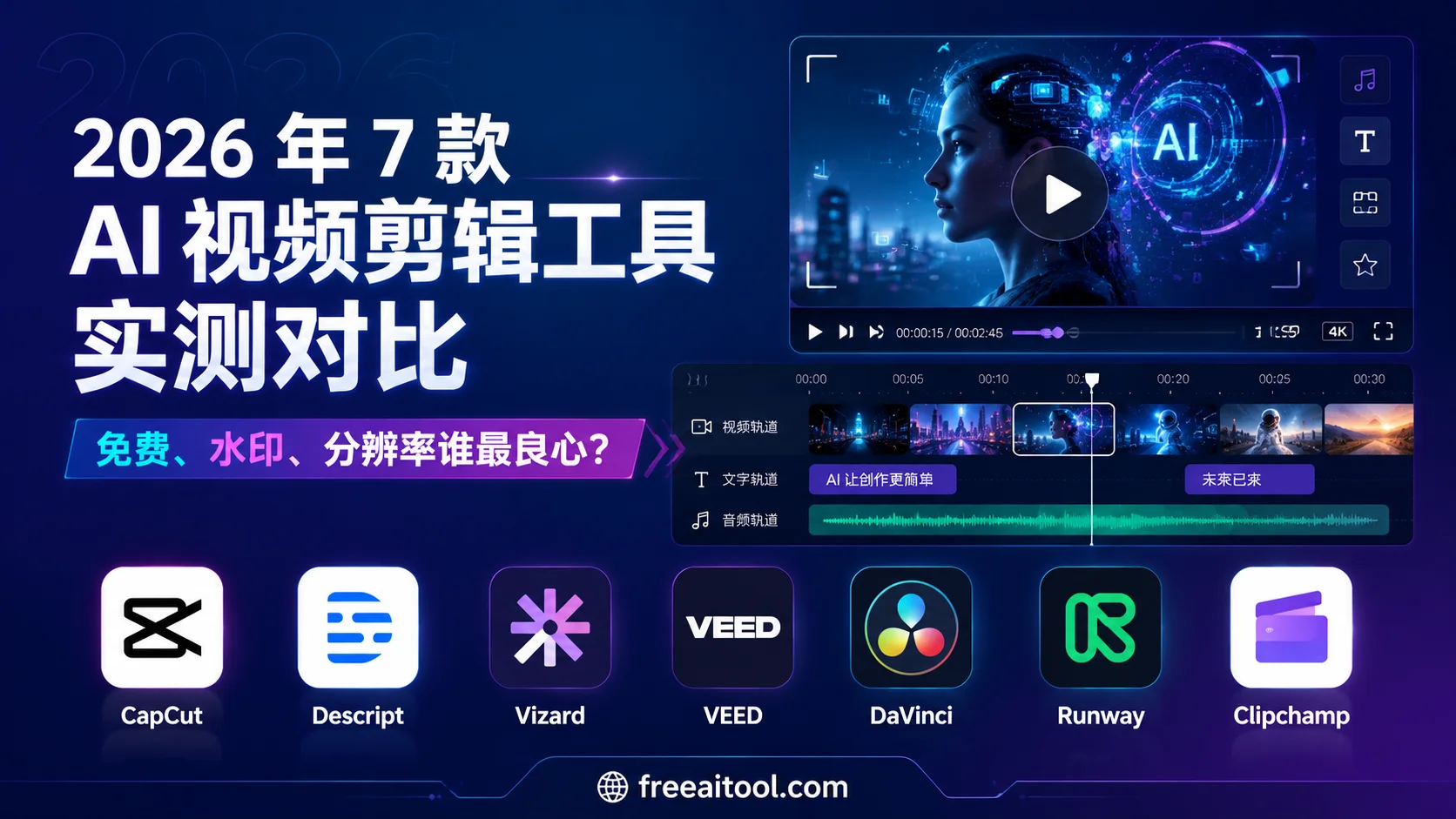
AI video generation tools are everywhere now. But there’s something you might not have realized: “generating” and “editing” are two completely different needs. AI generation helps you create a video from scratch, while AI editing takes your existing footage and quickly turns it into a polished piece — adding subtitles, cutting out mistakes, auto-splitting clips, converting between landscape and portrait, all with one click.
The AI video editing market is already approaching $3.75 billion in 2026 (per Mordor Intelligence), and short-form video creators are still growing exponentially. But here’s the problem: hundreds of tools claim to be “AI editors,” their free plans are full of tricks, and very few actually work well for users in China.
This review does one thing: filter everything through a “truly free” standard and give you clear, scenario-based recommendations.
Haven’t explored AI video generation tools yet? Check out our Top 10 Free AI Video Generators and AI Video Generators Ultimate Comparison first. Generation + editing = a complete workflow.
Our Standard: What Does “Truly Free” Mean?
Many tools advertise “free” plans, but as soon as you start using them, you run into three classic traps:
| Trap | What It Looks Like | Our Verdict |
|---|---|---|
| Watermark trap | Free version forces a branded watermark on exports — unusable for any real purpose | Watermarked ≠ truly free |
| Resolution trap | Claims to be free but locks exports at 360p/480p — HD requires payment | 720p is the bare minimum, 1080p is generous |
| AI feature paywall | Basic editing is free, but AI subtitles, auto-splitting, and other core features sit behind a paywall | Core AI features must be available for free |
We also include a China Usability Score (out of 10) across three dimensions:
- Network accessibility: Can you access it directly from China, or do you need a VPN?
- Chinese language support: Does the interface, subtitle system, and prompt input support Chinese?
- Payment friendliness: Does it accept Chinese payment methods (if upgrading is needed)?
⚠️ Disclaimer: The free plan details below are based on each tool’s publicly available information as of August 2026. Free policies can change at any time — we recommend checking the latest pricing pages before writing about or using these tools.
7 Tools, One by One
1. CapCut (International Version of 剪映) — The Go-To for Short-Form Creators
One-liner: An all-around free editor with rich AI features that are actually free
| Dimension | Details |
|---|---|
| Free plan highlights | 4K export, no watermark, AI auto-subtitles, AI voiceover, template library |
| Free limitations | Some premium effects and assets require payment (marked “Pro”) |
| China usability | ✅ Independent Chinese version available at capcut.cn (剪映); international version capcut.com requires a VPN for some features |
| AI feature coverage | Auto-subtitles, smart crop, AI voiceover, background removal, text-to-video |
| Recommendation | ⭐⭐⭐⭐⭐ |
CapCut is ByteDance’s video editing tool, split into a domestic Chinese version (剪映) and an international version (CapCut). It’s the most generous free tool in this review — no watermarks, 4K export, and fully functional AI auto-subtitles, all for free.
AI feature highlights from hands-on testing:
- Auto-subtitles: Supports Chinese, English, Japanese, and more. Recognition accuracy is very high — perfect for talking-head videos
- Smart crop: One-click conversion from landscape to portrait (9:16), with AI auto-tracking of the main subject
- AI voiceover: Type text and get speech output, with multiple voice options
- Background removal: Cut out subjects without a green screen — best-in-class among free tools
Notes for users in China: If you’re in China, just use the domestic version of 剪映 (capcut.cn). The features are nearly identical and there are no network issues. You’d only need the international version (CapCut) for certain exclusive templates.
Official links: CapCut International | 剪映 China
2. Descript — The Podcast and Talking-Head Creator’s Dream Tool
One-liner: Edit video by editing text — mistake removal and voice cloning are killer features
| Dimension | Details |
|---|---|
| Free plan highlights | 1 hour of transcription per month, Studio Sound noise reduction, basic text editing |
| Free limitations | Exports carry a Descript watermark, resolution capped at 720p, Overdub voice cloning limited to 1 voice |
| China usability | ⚠️ Requires a VPN, interface is primarily English, Chinese subtitle recognition is limited |
| AI feature coverage | AI transcription, text-based editing, Studio Sound noise reduction, Overdub voice cloning, filler word removal |
| Recommendation | ⭐⭐⭐⭐ |
Descript’s core philosophy: treat video like a text document. Its AI transcription engine generates a script from your video. You delete or modify text in the script, and the video is edited accordingly. For podcast and talking-head content, this is easily 10x faster than traditional timeline editing.
AI feature highlights from hands-on testing:
- Text-based editing: Delete filler words like “um” and “ah” from the transcript, and the video is automatically cut to match (Filler Word Removal)
- Studio Sound: One click to transform noisy recordings into studio-quality audio
- Overdub: AI voice cloning — modify the text and your cloned voice reads it back, no re-recording needed
Notes for users in China: Descript’s interface and features are English-first. Chinese subtitle recognition works okay, but the UI has weak Chinese support. A stable connection is required, and the free version’s watermark and 720p cap may not be friendly for some use cases.
Official link: Descript
3. Vizard AI — Automated Long-to-Short Video Splitting
One-liner: Automatically chop long videos into shorts — ideal for content matrices and repurposing
| Dimension | Details |
|---|---|
| Free plan highlights | 300 minutes of processing per month, auto-subtitles, social media templates |
| Free limitations | Watermarked exports, resolution capped at 720p |
| China usability | ⚠️ Requires a VPN, English-only interface |
| AI feature coverage | Auto-splitting, AI subtitles, smart crop (landscape to portrait), content highlight detection |
| Recommendation | ⭐⭐⭐⭐ |
Vizard AI’s value proposition is crystal clear: upload a long video, and AI automatically identifies the best moments, splits them into multiple short clips, and auto-applies subtitles and social templates. For creators running TikTok/Douyin/WeChat Channels matrices, this saves enormous amounts of manual editing time.
AI feature highlights from hands-on testing:
- Auto-splitting: AI automatically identifies highlight-worthy segments in your video
- Smart portrait conversion: Automatically converts landscape content to 9:16 portrait with AI subject tracking
- Auto-subtitles: Multi-language support with social-ready subtitle templates
Notes for users in China: English-only tool that requires a VPN from China. The 720p watermarked free exports may not cut it for formal projects, but they’re perfectly fine for testing content on matrix accounts.
Official link: Vizard AI
4. VEED.io — Lightweight Browser-Based Editing
One-liner: An AI video editor you open in your browser — light and fast
| Dimension | Details |
|---|---|
| Free plan highlights | No installation needed, runs in browser, AI subtitles, basic editing features |
| Free limitations | Exports carry a VEED watermark, 10-minute duration cap, resolution limited to 720p |
| China usability | ⚠️ Requires a VPN, English interface, Chinese subtitle support available |
| AI feature coverage | AI subtitles, text-to-speech, progress bar generation, background removal, audio cleanup |
| Recommendation | ⭐⭐⭐ |
VEED’s biggest advantage is zero installation — open your browser and start editing. Its AI subtitle feature is well done, with automatic language detection and decent Chinese support. But the free plan comes with notable limitations: the 10-minute cap and watermark are the main pain points.
Best for: Quick short-clip editing, adding subtitles, and simple text-and-image video projects. Not suitable for long videos or projects that need HD exports.
Official link: VEED
5. DaVinci Resolve — Free, Professional-Grade Editing
One-liner: Hollywood-level free editing and color grading — the most powerful tool, but with the steepest learning curve
| Dimension | Details |
|---|---|
| Free plan highlights | Nearly full feature set, no watermark, no time limits, 4K+ support, professional color grading tools |
| Free limitations | No AI auto features in the free version (AI features are in the Studio paid version, $295 one-time purchase) |
| China usability | ✅ Direct download and install available, Chinese interface supported |
| AI feature coverage | Free version: no AI features; Studio version: Magic Mask, voice isolation, smart reframing, etc. |
| Recommendation | ⭐⭐⭐⭐ (for pros) / ⭐⭐ (for beginners) |
DaVinci Resolve by Blackmagic Design is a professional video editing suite. The free version already offers far more than most paid tools — multi-track editing, professional color grading, Fusion visual effects, Fairlight audio, all included.
Important caveat: DaVinci’s free version has no AI-assisted editing. AI-powered auto-subtitles, smart cropping, voice noise reduction, and similar features all require the Studio version ($295 one-time, no subscription). So if you want “AI to help you edit,” the free version isn’t your best bet. But if you want to “edit professional-quality footage yourself,” the free version is unbeatable.
Notes for users in China: Direct access available in China, Chinese interface supported. Highly recommended for professional users. Beginners should learn the basics first before worrying about AI assistance.
Official link: DaVinci Resolve
6. Runway — The Generative AI Video Editing Pioneer
One-liner: Generative AI meets video editing — the most creative tool, but free credits run out fast
| Dimension | Details |
|---|---|
| Free plan highlights | Gen-3 Alpha video generation, green screen/background removal, motion tracking |
| Free limitations | Limited free credits (~125 credits), 720p export, watermarked exports |
| China usability | ⚠️ Requires a VPN, English interface |
| AI feature coverage | Video generation (Gen-3), green screen, motion tracking, frame interpolation, video extension, inpainting |
| Recommendation | ⭐⭐⭐⭐ |
Runway is an innovator in AI video editing. Unlike traditional editing tools, Runway embeds generative AI directly into the editing workflow — you can edit video content with text prompts (e.g., “change the sky to sunset”), do precise object removal (inpainting), and perform smooth frame interpolation and video extension.
AI feature highlights from hands-on testing:
- Gen-3 Alpha: Text-to-video and image-to-video generation, top-tier quality among free tools
- Inpainting: Precisely erase unwanted objects from video
- Motion tracking: AI automatically tracks objects in frame, making it easy to add effects or text
- Green screen: AI-powered keying with higher precision than traditional chroma key
Notes for users in China: Requires a VPN to access. Free credits run out quickly — after that, paid plans start at ~$12/month. Great for creative users, less ideal for everyday efficiency-focused editing.
Official link: Runway
7. Clipchamp (Microsoft) — The Lightweight Editor Built Into Windows
One-liner: A free video editor that comes with Windows 11 — zero barrier to entry
| Dimension | Details |
|---|---|
| Free plan highlights | 1080p watermark-free export, built into Windows 11/Edge, basic AI features |
| Free limitations | Advanced AI features (like premium AI voiceover) require payment, limited asset library |
| China usability | ✅ Comes with Windows, some features available in China |
| AI feature coverage | Auto-subtitles, text-to-speech, smart crop, AI voiceover |
| Recommendation | ⭐⭐⭐ |
Clipchamp was acquired by Microsoft and is now built into Windows 11 and the Edge browser. For Windows users, ready to use out of the box is its biggest advantage. The free version supports 1080p watermark-free export, which is solid for a free tool.
Best for: Everyday simple video editing, adding subtitles, and adding transitions. Not suited for professional-level needs or complex AI editing.
Official link: Clipchamp
📊 7-Tool Comparison at a Glance
Free Plan Core Parameters
| Tool | Free Export Resolution | Watermark | Core AI Free | China Usability |
|---|---|---|---|---|
| CapCut/剪映 | 4K | ❌ No | ✅ | ✅ 9/10 |
| Descript | 720p | ✅ Yes | ✅ | ⚠️ 4/10 |
| Vizard AI | 720p | ✅ Yes | ✅ | ⚠️ 3/10 |
| VEED.io | 720p | ✅ Yes | ✅ | ⚠️ 4/10 |
| DaVinci Resolve | 4K+ | ❌ No | ❌ Paid only | ✅ 9/10 |
| Runway | 720p | ✅ Yes | ⚠️ Limited credits | ⚠️ 3/10 |
| Clipchamp | 1080p | ❌ No | ✅ | ✅ 7/10 |
Scenario Guide: Which Should You Use?
| Your Use Case | First Choice | Backup |
|---|---|---|
| Short-form creator (Douyin/TikTok/WeChat Channels) | CapCut/剪映 | Clipchamp |
| Podcast/talking-head/course recording | Descript | CapCut |
| Long-form precision editing (Bilibili/YouTube) | DaVinci Resolve | CapCut |
| Subtitle automation | CapCut | VEED.io |
| Long-to-short splitting for matrices | Vizard AI | CapCut |
| AI creative editing (effects/generation) | Runway | CapCut |
| Quick start for beginners | Clipchamp | CapCut |
💡 Interlink tip: If you generated video素材 with AI and want to edit further, check our AI Video Prompt Engineering Guide for generating better raw footage, then use the tools recommended here for editing.
FAQ
Q1: Are free AI video editing tools really enough?
For most individual creators and small teams, absolutely yes. CapCut/剪映’s free version already covers 80% of everyday editing needs: 4K watermark-free export, AI auto-subtitles, smart cropping, and a rich template library. You only need to consider paid tools when your needs reach “film-grade color grading,” “multi-person collaboration,” or “AI automation pipeline” territory.
Q2: Which is most convenient for users in China?
Without a doubt, 剪映 (CapCut China). Direct access in China, Chinese interface, high Chinese subtitle recognition accuracy, and an asset library tailored to Chinese users’ tastes. If 剪映 doesn’t meet your needs, DaVinci Resolve (for professional work) or Clipchamp (for lightweight editing) are solid alternatives.
Q3: Can you remove watermarks from free versions?
Not legally. Tools like Descript, VEED, and Vizard force watermarks on their free exports — it’s part of their business model. If you can’t live with watermarks, go straight to CapCut/剪映 or DaVinci Resolve. Neither adds watermarks on their free plans.
Q4: What about Kling O1 Edit Video?
Kling’s O1 Edit Video was named “Best AI Video Editing Tool” by JAI Portal in 2026. It supports editing video content with natural language instructions (e.g., “move the person in the frame to the right” or “change to a rainy background”). It’s one of the closest tools to “editing video by talking.” However, Kling’s free credits are limited, and its availability in China may vary — check Kling AI for the latest.
Q5: Will AI replace traditional editing software?
Not in the short term. AI currently excels at automating repetitive tasks (subtitles, splitting, rough cuts), but human editorial instincts remain irreplaceable for narrative pacing, emotional expression, and aesthetic judgment. The best strategy: let AI handle the grunt work, and save your energy for creative decisions.
Summary: Free Tools Can Produce Professional Videos Too
The AI video editing market in 2026 is highly mature. If you only pick one tool, CapCut/剪映 is the best choice for most people — powerful free version, no watermarks, 4K support, full AI features, and no network barriers in China.
But if you have specific needs:
- Podcasts/talking-heads → Descript
- Professional precision editing → DaVinci Resolve
- Long-to-short matrix content → Vizard AI
- AI creative effects → Runway
The complete “generate + edit” workflow: First, create footage with AI video generation tools (see our Video Generators Comparison), then process with AI editing tools, and finally publish across platforms — this entire pipeline can run on free tools in 2026.
📌 Final reminder: Free terms can change at any time. Data in this article is based on each tool’s official website as of August 2026. Always verify the latest free policies on their sites before using.